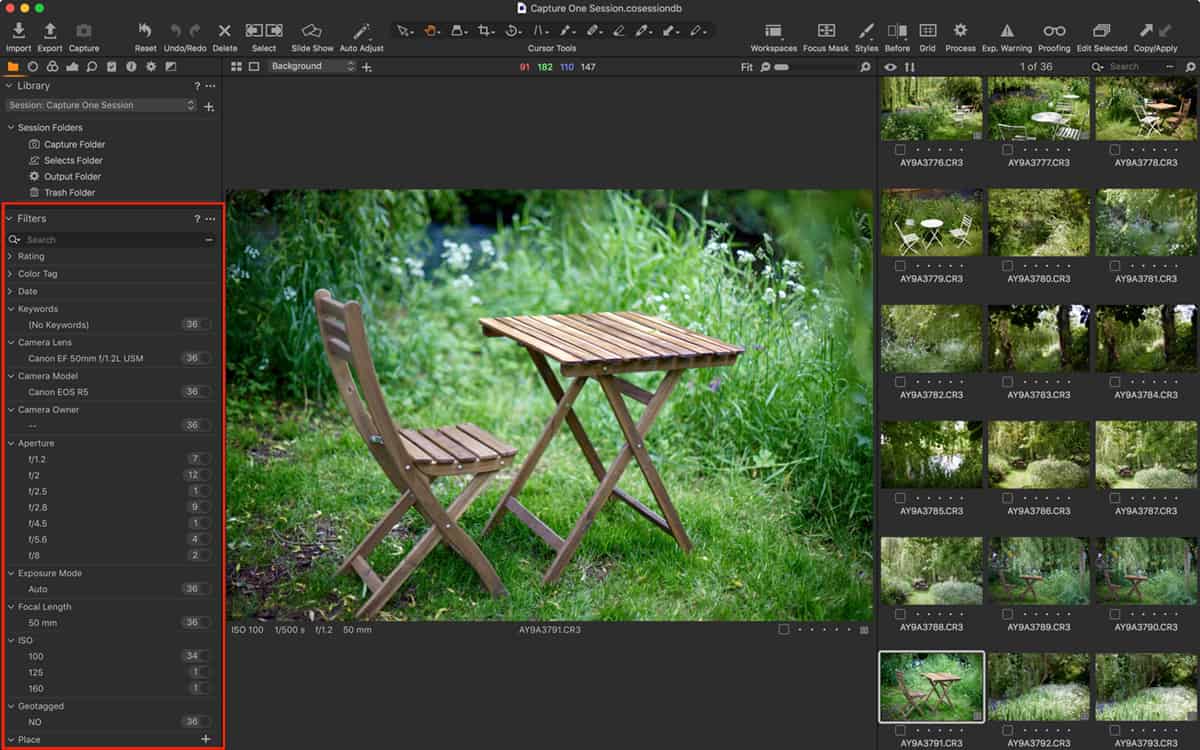
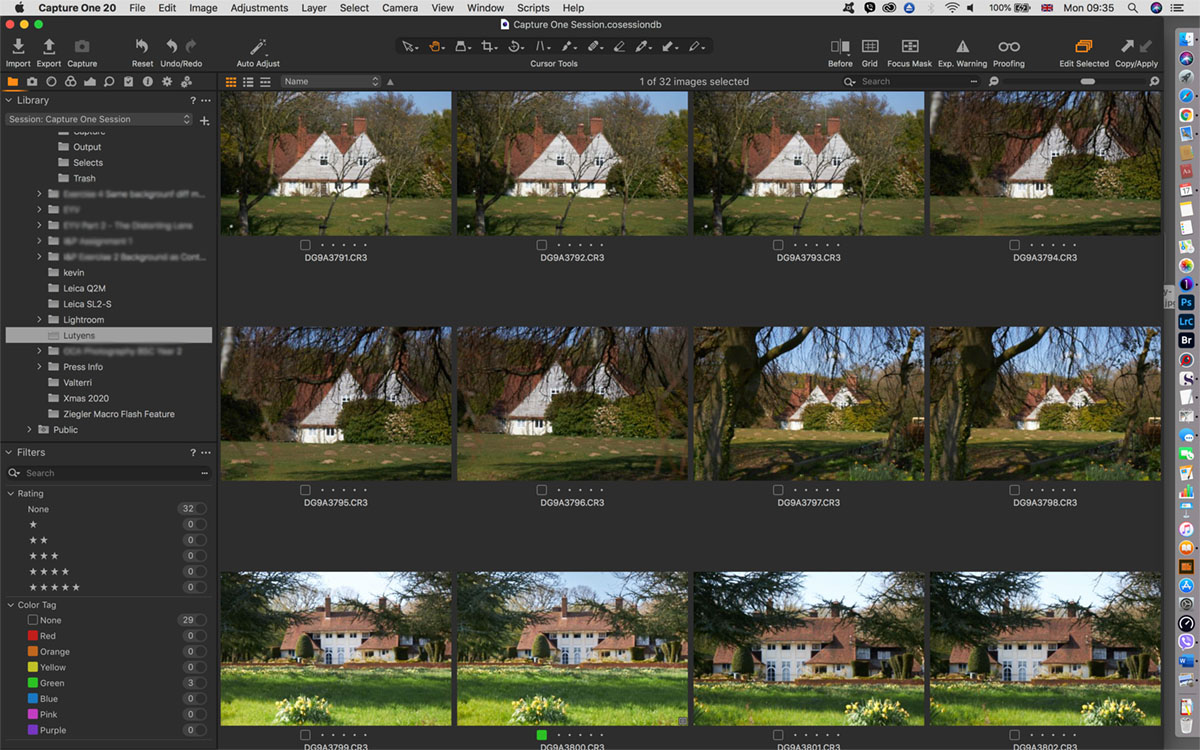
Have you ever wanted to selectively import images from a memory card or folder on your computer or external disk, but can’t tell by looking at the displayed thumbnails which images you need to select?
That’s not as absurd as it sounds. I often want to download images from a memory card that have been taken with a certain camera model or lens, and have no idea which is which from the thumbnails. In a less niche use case, for example, before importing you might want to search a folder or series of folders for a certain image or series of images by a particular month or year, or if the images have had some work on them by a specific camera owner.
Continue Reading
The remainder of this review is available to Digital Journal of Photography Members.
Every review, guide and tutorial is based on first-hand experience and over 25 years' experience in the photo industry.
Membership includes:
- ✔ Camera and lens reviews
- ✔ Practical Canon and Lightroom guides
- ✔ Independent buying advice based on real-world experience
- ✔ Regular new content and exclusive member resources
Photography changes quickly. Your membership gives you access to new reviews, updated guides and expert advice as they're published.
Choose your membership
- Monthly — $9.99
Flexible access. - 6 Months — $34.99
$5.83 per month — save $24.95. - Annual — $49.99 ★ Best Value
$4.17 per month — save $69.89.
Subscribe now
|
Already a member? Log in