Articles
Applying Settings to multiple images in Lightroom Classic
You can apply settings to multiple images at a time in Lightroom Classic through various methods. This helps save time and ensures consistency across your photo edits. The following methods apply to multiple settings, of course, or specific ones, so if you have a sequence of images, they are an efficient way to apply targeted adjustments. For example, on a garden or architecture shoot, I often want to adjust specific colours using the Colour Mixer tool and have those applied over several images for a consistent look. So these options are employed practically every time I open Lightroom. 1. Using Sync Settings from the Develop Module Select the Images: Go…
ND Filter Factors, Densities and F-Stops compared
Numerous manufacturers use different terminology for their Neutral Density filters, which can sometimes make direct comparisons difficult. I’ve produced this chart showing the various designations in use against the number of stops reduced. Some manufacturers produce filters that fall in between stops, making comparisons even harder. For example, an ND400 filter would be just below 9 stops, but probably within tolerance to be marketed as a 9-stop filter. Those highlighted are the three most versatile filters overall, though it depends on your intended use. A 15-stop filter for long exposures in bright conditions, fully blurring clouds and smoothing seas, might be more useful than a 10-stop, which may only partially…
Lightroom Classic: Best Practice for Keeping Edits Separate
In Adobe Lightroom Classic, when you copy a Collection, the edits and adjustments made to images in the original Collection are also applied to the copied Collection. This means that changes made to a photo in either Collection will update in both. Unfortunately, there is no direct way to create a complete copy of the Collection that maintains separate edits from the original image directly within Lightroom. However, there is a way to work around that by creating a Collection from another Collection. 1. Create Virtual Copies Right-click on the image you want to edit and select “Create Virtual Copy.” Virtual Copies let you make different edits to the same…
Copying Steps within a Photoshop Action
You can copy specific steps from one action to another in Photoshop. By copying a step that performs a specific adjustment, you can create complex Actions that greatly reduce editing time and yet simplify your workflow, ensuring consistency across different projects. Specific adjustments include sharpening, resizing, or saving to a specific file type (say JPEG, size 10) and colour space, or naming a file and saving it to your desktop, but they’re not restricted to that, of course. I have set up actions for different things, such as borders and frames, and by adding additional steps this way, you can fine-tune them endlessly. Here’s how to do it: Steps to…
Adding to an Existing Photoshop Action
You can add steps to an existing Photoshop action after it has been created. You might want to add to an existing Photoshop action to incorporate new techniques or adjustments based on client feedback, or you may have realised you’ve missed out a step after finishing recording. Whatever the reason, adding steps to an existing Action is an extremely useful feature, allowing better customisation and efficiency in your workflow. Here’s how to add additional Steps to an Action Open the Actions Panel: Go to Window > Actions or press Alt + F9 (Windows) / Option + F9 (Mac) to open the Actions panel. Select the Action: Find and select the…
Favourite gear
I’m often asked about my thoughts on gear, which was one of the reasons I started reviewing and consulting in the early noughties. I’m still asked about gear all the time, so I thought I would list some of my favourite items. These days, I only review gear that I think I’ll like anyway, so it’s a lot more personalised and relevant to the type of photography I currently practice: architecture, homes, and gardens. Personal projects include the hybrid documentary landscape genre. I have an Amazon page here where I list some of the items. However, this page here gives you an idea of why I like them and why…
Using Adapted Lenses on the Canon EOS R5
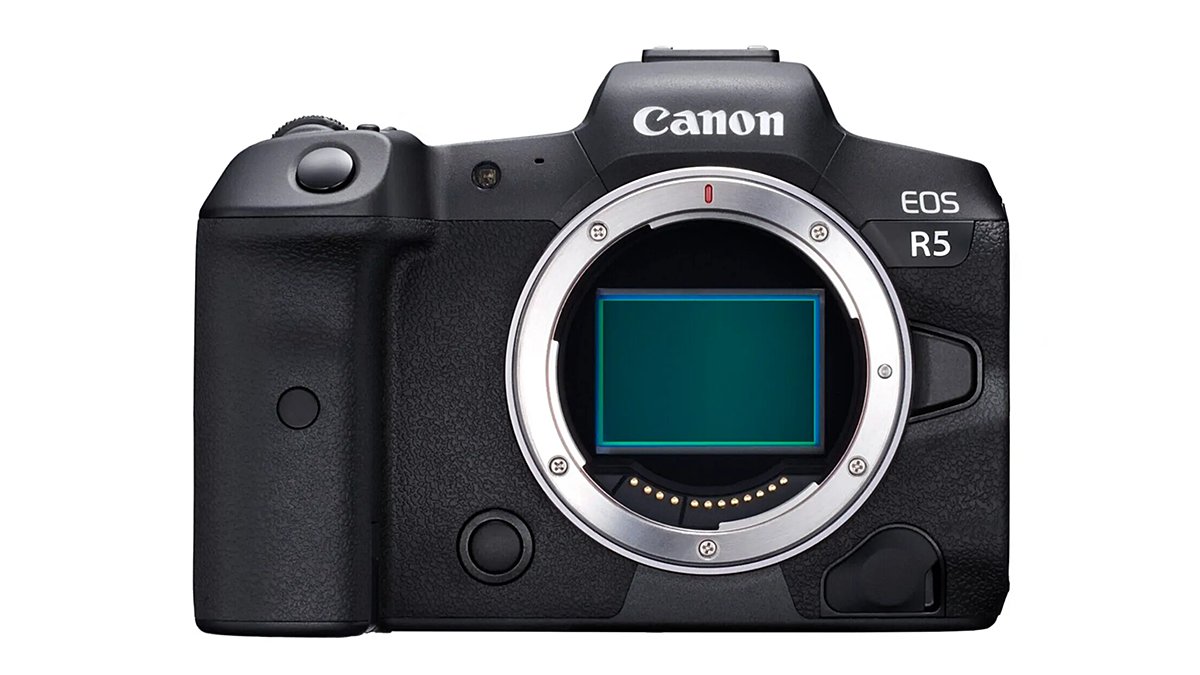
When mounting a ‘mechanical’ adapter, that is one that has no electronic connection, the camera does not recognise that an adapter is attached, even if a lens is mounted on it. The Canon EOS R5 is delivered from the factory with the option to operate mechanically adapted lenses disabled (as are other EOS R cameras). No doubt this is to protect the shutter blades and sensor, but it means you will have to enable the option, which Canon describes as ‘release shutter without a lens attached’. This presumably refers to operating the camera to check the shutter operation, but more often than not, I suspect users are going to want…
Step-by-Step Lightroom Classic Workflow plus useful tips
A well-structured workflow in Adobe Lightroom Classic can significantly enhance your photo editing efficiency and organisation. This is the typical workflow from import to export, but feel free to adjust the steps as needed to fit your style and preferences. Step-by-Step Lightroom Workflow STEP DESCRIPTION 1. Import Photos Use the Import dialog to select photos. Apply metadata (copyright, creator/artist’s name), keywords, and any develop(ment) settings during import. 2. Organize Create folders (and collections) to organise images. Use star ratings, flags, or colour labels to categorise photos. 3. Culling Review images and select the best ones. Use flags (Pick/Reject) to quickly sort through images. 4. Basic Adjustments Start with basic edits:…
How to create and use Virtual Copies in Lightroom
In Adobe Lightroom Classic, you can easily duplicate a photo with various edits using the Virtual Copy function. Here’s how to use virtual copies in Lightroom: What are Virtual Copies? In Lightroom, a virtual copy allows you to create a duplicate of a photo without actually duplicating the file on your hard drive. This means you can apply different edits, settings, or metadata to the same original image while keeping the original intact and unaltered. Crucially, VCs allow you to visually compare the effect of various edits on what’s essentially the same photo, without the huge file sizes of TIFFs. It’s an essential feature of a parametric editor and critical…
What are the benefits of Virtual Copies in Lightroom?
Virtual copies are commonly used in Adobe Lightroom, although their usage may vary among different photographers and workflows. Here are some reasons why many Lightroom users find virtual copies beneficial: Common Uses of Virtual Copies in Lightroom Experimentation: Photographers often create virtual copies to experiment with different editing styles or techniques without altering the original image. This allows for creative freedom and exploration. Multiple Versions: Users frequently create virtual copies to produce different versions of the same photo, such as: Colour vs. black and white Different crops or aspect ratios Various exposure adjustments or colour grading Client Options: When working with clients, photographers can create virtual copies to present multiple…